AltSnap Overview
AltSnap generates context-aware alt text with confidence scores, helping developers and content teams meet accessibility standards and improve AI SEO in minutes.
AltSnap is an AI-powered accessibility and SEO companion that automatically generates accurate, WCAG-compliant alt text for every image on your website—instantly.
Designed for developers, designers, and content teams, AltSnap runs quietly in the background to make your images smarter. It evaluates context, provides confidence scores, and stores generated alt text for future use, all while keeping you in control through an optional dashboard for overrides and audits.
You can integrate AltSnap in minutes using a simple JavaScript snippet, a flexible API, or through the client dashboard for full visibility. Every image becomes compliant, searchable, and AI-ready—with zero extra effort.
Client Dashboard
The AltSnap Client Dashboard provides a clean, focused view of your account activity and usage metrics. It gives you immediate visibility into how AltSnap is performing on your website and helps you track your subscription usage and limits.
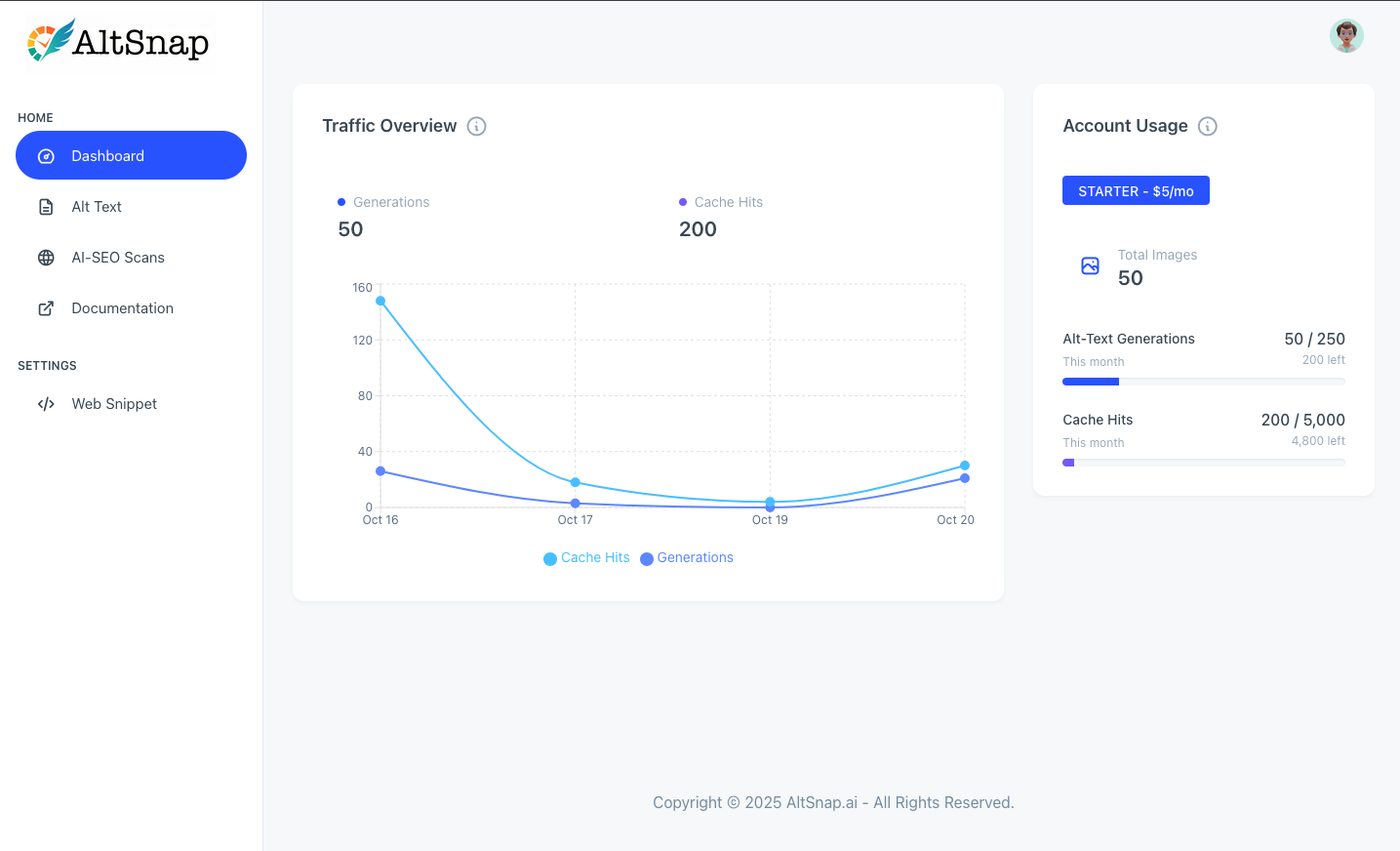
Client Dashboard - Clean interface with Traffic Overview and Account Usage metrics
Traffic Overview
The Traffic Overview widget displays key performance metrics for your AltSnap integration:
- Generations: Shows the total number of AI-generated alt text entries created for your images
- AI-SEO Scans: Displays the number of AI-powered SEO scans performed on your pages
- Served Alt-Texts: Displays how many times cached alt text was served instead of generating new content
- Site Reports: Displays the number of AI-generated Site Reports created for client-ready summaries
A visual line graph tracks these metrics over time, helping you understand usage patterns and optimize your AltSnap integration for better performance and cost efficiency. The chart allows you to monitor trends and identify spikes in activity across all four key metrics. Weekly totals are displayed in summary cards above the chart, giving you a quick overview of your usage for the past 7 days.
Account Usage
The Account Usage widget provides a comprehensive view of your subscription and limits:
- Current Plan: Displays your active subscription tier and monthly cost
- Total Images: Shows the number of images AltSnap has processed across your website
- Total Sites: Displays the number of websites you have integrated with AltSnap
- Alt-Text Generations: Tracks your usage against your plan's generation limit with a progress bar
- Served Alt-Texts: Monitors your cache hit usage against your plan's limit
- AI-SEO Scans: Tracks the number of AI-powered SEO scans performed against your monthly allowance
- Site Reports: Tracks the number of AI-generated Site Reports created against your monthly allowance
Progress bars and remaining counts help you stay within your plan limits and understand when you might need to upgrade for higher usage volumes. Each usage metric shows both the current usage and remaining quota for the current billing period. Site Reports credits vary by plan tier, allowing you to generate client-ready summaries of your site's health and share them with stakeholders.
Navigation & Features
The dashboard sidebar provides easy access to all AltSnap features:
- Dashboard: Your main overview (current page)
- Alt Text: Manage and review generated alt text for your images
- AI-SEO Scans: Access SEO analysis and recommendations
- Site Reports: Generate and view client-ready summaries of your site's health
- Documentation: Quick access to integration guides and API docs
- Web Snippet: Configure and manage your website integration
This streamlined interface focuses on the essential metrics you need to monitor your AltSnap usage and ensure your website's images are properly optimized for accessibility and SEO.
Alt Text Management
The Alt Text management interface provides comprehensive control over AI-generated alt text across your website. You can review confidence scores, edit descriptions, and instantly deploy changes without requiring code updates.
Alt Text List View
The main Alt Text screen displays a comprehensive table of all images that have been processed by AltSnap. This centralized view helps you monitor and manage alt text across your entire website.
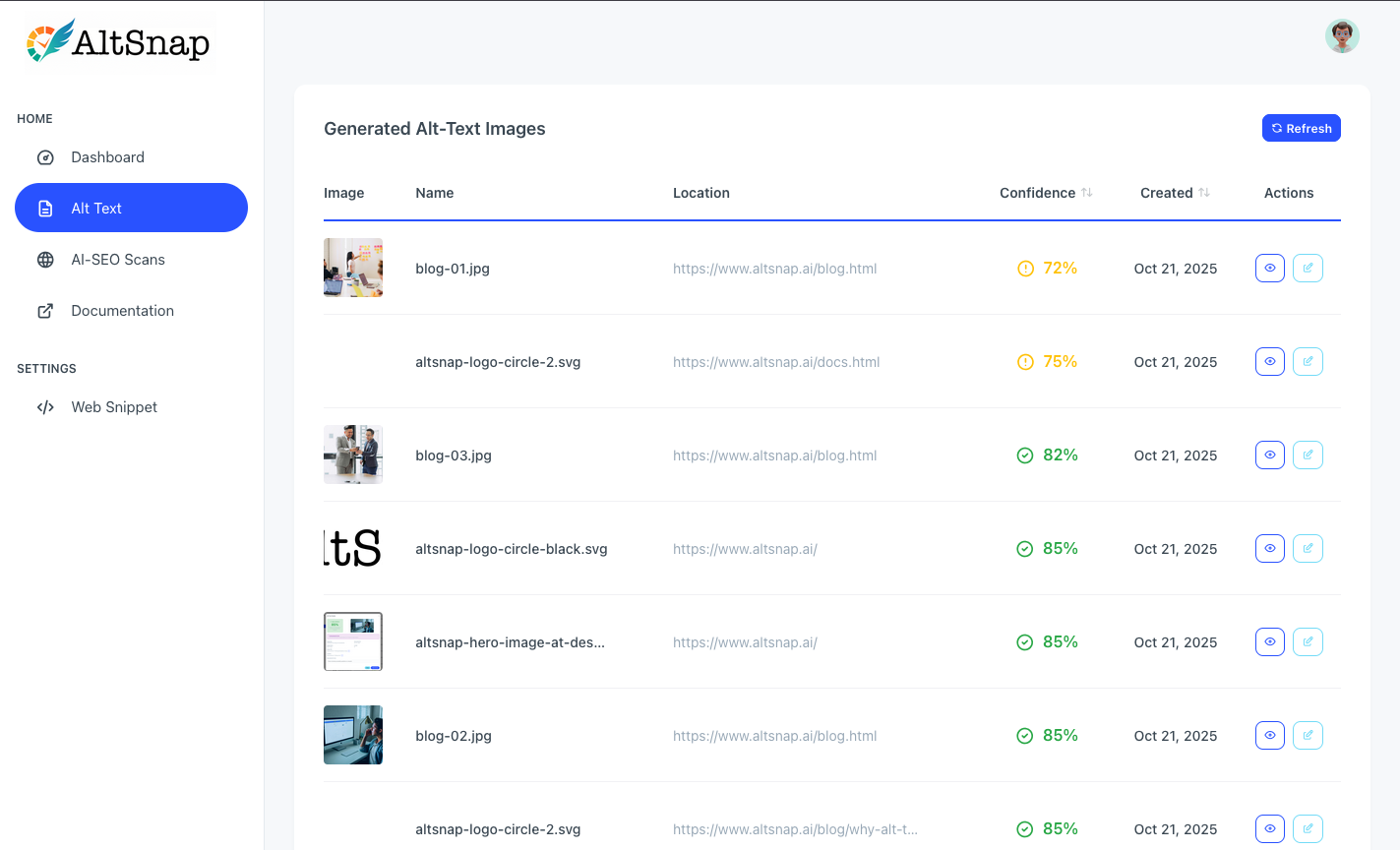
Alt Text List View - Comprehensive table showing all processed images with confidence scores and quick actions
Table Columns
- Image: Thumbnail preview of each processed image
- Name: The filename of the image (e.g., blog-01.jpg, altsnap-logo-circle-2.svg)
- Location: The URL where the image is hosted
- Confidence: AI confidence score with visual indicators:
- 72-75%: Yellow warning icon - indicates medium confidence, may need review
- 82-85%: Green checkmark icon - indicates high confidence, likely accurate
- Created: Date when the alt text was generated
- Actions: View and Edit buttons for each image
Key Features
- Refresh Button: Updates the list with the latest processed images
- Confidence Filtering: Visual indicators help prioritize which alt text needs attention
- Quick Actions: Direct access to view details or edit alt text for any image
Alt Text Details Modal
Clicking the "View" button opens a detailed modal showing comprehensive information about a specific image and its generated alt text. This view provides the context needed to evaluate alt text quality.
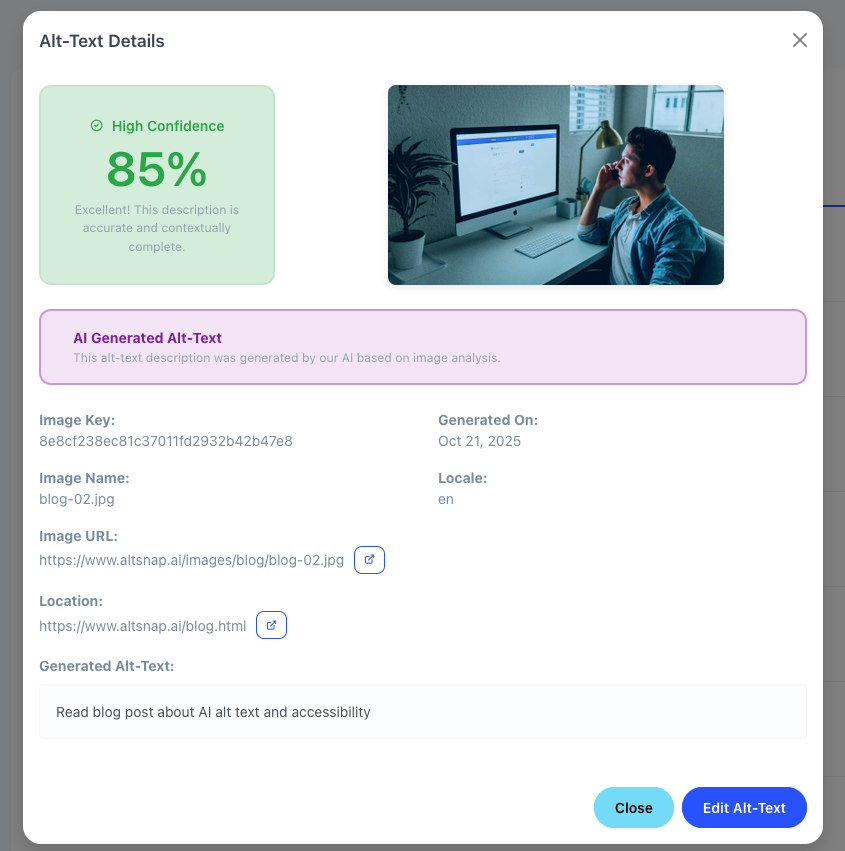
Alt Text Details Modal - Detailed view with confidence assessment, image preview, and editable alt text field
Confidence Assessment
The confidence score is prominently displayed with contextual feedback:
- High Confidence (85%+): Green indicator with "Excellent! This description is accurate and contextually complete."
- Medium Confidence (72-84%): Yellow indicator with "Good, but you may want to review for accuracy."
- Low Confidence (<72%): Red indicator suggesting the alt text needs improvement
Image Information
- Image Preview: Visual reference for the alt text being evaluated
- Image Key: Unique identifier for the image
- Generated On: When the alt text was created
- Image Name: Original filename
- Locale: Language setting for the generation
- Image URL: Direct link to the image file
- Location: The webpage where this image appears
Editable Alt Text
The generated alt text is displayed in an editable text field, allowing immediate modifications. This is crucial for the "force override" functionality that enables instant deployment of changes.
Alt Text Edit Modal
The edit modal provides full control over alt text content and deployment options. This is where you can refine AI-generated descriptions and choose how changes are applied.
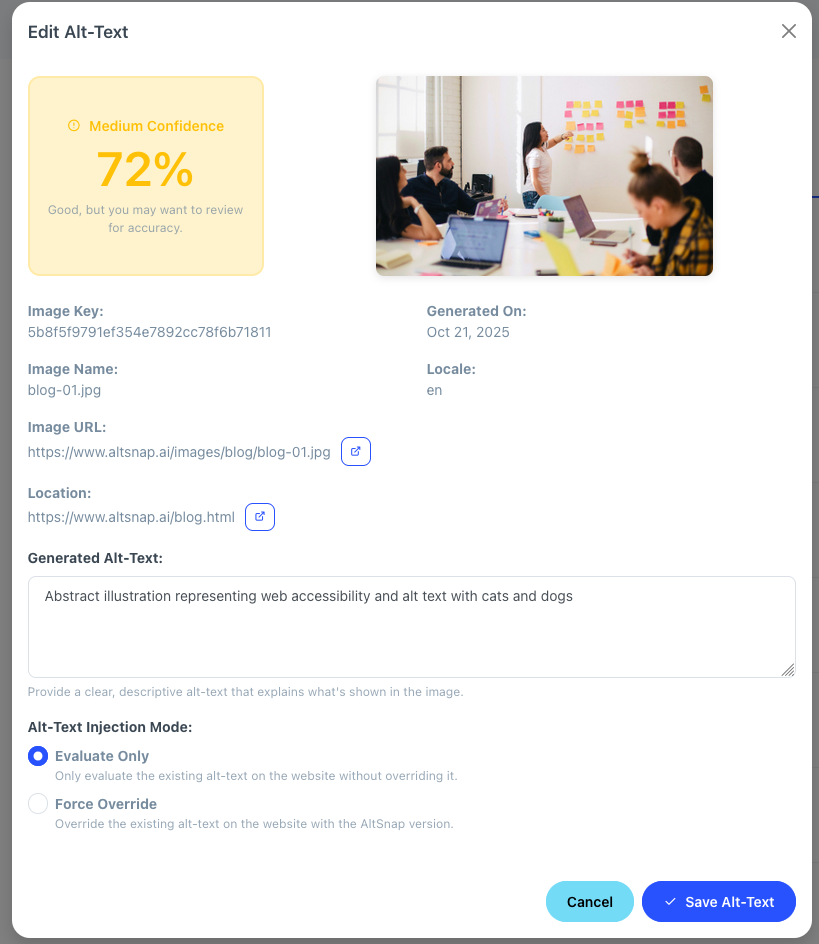
Alt Text Edit Modal - Full editing control with confidence guidance and Force Override deployment options
Confidence-Based Guidance
The confidence score provides context-specific guidance:
- Medium Confidence (72%): "Good, but you may want to review for accuracy" - suggests careful review
- High Confidence (85%+): "Excellent! This description is accurate and contextually complete" - indicates ready to use
Alt Text Editing
The main editing area includes:
- Current Alt Text: The AI-generated description in an editable text area
- Guidance Prompt: "Provide a clear, descriptive alt-text that explains what's shown in the image"
- Full Edit Capability: Complete control to modify, refine, or completely rewrite the alt text
Alt-Text Injection Mode
This is the critical feature that enables instant deployment without code changes:
- Evaluate Only: "Only evaluate the existing alt-text on the website without overriding it" - for testing and review
- Force Override: "Override the existing alt-text on the website with the AltSnap version" - for instant deployment
Force Override: Instant Deployment
The "Force Override" option is essential when you need to update alt text immediately without waiting for code deployments. This feature allows you to serve corrected or improved alt text instantly across your website, making it perfect for urgent accessibility fixes or content updates.
Action Buttons
- Cancel: Discards any changes and closes the modal
- Save Alt-Text: Applies changes based on the selected injection mode
Workflow Best Practices
To effectively manage alt text across your website:
- Review Low Confidence Items: Start with images showing yellow warning icons (72-75% confidence)
- Use Force Override for Urgent Fixes: When immediate changes are needed, use Force Override to deploy instantly
- Test with Evaluate Only: Use Evaluate Only mode to review changes before deploying
- Monitor High Confidence Items: Green checkmark items (82%+) typically don't need immediate attention
- Regular Reviews: Periodically review the Alt Text list to ensure ongoing quality
Important Note
Force Override changes are served immediately through AltSnap's CDN, bypassing your website's code. This ensures instant accessibility improvements without requiring development resources or deployment cycles.
Site Reports
Site Reports give you a client-ready summary of a site's health across accessibility, SEO, AEO, content structure, and technical checks. They are built from the same underlying data AltSnap collects from your snippet and AI-SEO scans, but formatted for non-technical stakeholders.

Sample Site Report - Comprehensive client-ready summary with executive overview, key strengths, risks, and actionable recommendations
What Site Reports Include
Each report is designed so you can drop it straight into a client email, delivery document, or internal QA review. The report content is generated by AI from your scan data, but always stays grounded in the actual scores and metrics AltSnap recorded.
- Executive Summary: A short narrative overview that highlights overall score, recent improvements, and major risks.
- Launch Status: A simple label such as "Ready for launch", "Ready with minor fixes", or "Needs attention".
- Key Strengths: Bulleted highlights of what the site is doing well (for example, strong content structure, solid crawlability, or good accessibility coverage).
- Key Risks: The most important or severe issues pulled from your open recommendations so you can quickly align on priorities.
- Accessibility Summary: A plain-language summary of the current accessibility posture, including alt text coverage and heading issues.
- SEO Summary: A high-level view of how well the site is set up for traditional search visibility.
- AEO Summary: Optional context on "Answer Engine Optimization" for teams that care about visibility in AI-powered search and assistants.
- Alt Text Summary: Counts and commentary about missing alt text, auto-generated alt text, and the quality of existing descriptions.
- Content Integrity Summary: Notes about broken links, placeholder content, duplicate tags, and structural issues.
- Technical Health Summary: A quick status update on crawlability, canonical tags, robots.txt, sitemaps, and related signals.
- Recommended Next Steps: A short, prioritized list of concrete actions to take next.
How Site Reports Are Generated
Site Reports are generated from existing AltSnap scan data. They do not run new crawls on their own, but instead summarize the most recent metrics and recommendations for a given site.
- You install the AltSnap snippet and allow it to collect page-level and image-level data as visitors browse the site.
- AI-SEO scans and recommendation rules run on that data to compute scores, flags, and issue lists.
- When you request a Site Report from the dashboard, AltSnap feeds that structured data into an AI summary model.
- The model produces a JSON report payload that is rendered as a human-readable report in the UI.
Important
Site Reports never invent their own scores or counts. They only summarize values that already exist in your AltSnap data, which is why it’s important to have the snippet installed and AI-SEO scans running regularly.
Using Site Reports with Clients
The primary goal of Site Reports is to help you show your work. Instead of sending raw spreadsheets or tool screenshots, you can hand clients a narrative summary that explains what you found, what you fixed, and what you recommend next.
- Attach reports to launch checklists or handoff documents.
- Use them to justify QA time in your estimates and invoices.
- Include before/after reports when you are brought in to fix an existing site.
- Share them during review calls to focus the conversation on the most important issues.
Recommended Workflow
- Install the AltSnap snippet on your staging or production environment.
- Let users or your QA team browse key flows so AltSnap can collect coverage.
- Review AI-SEO scores and recommendations, then implement fixes.
- Use the "Verify Fixes" workflow to trigger follow-up scans on updated pages.
- Generate a Site Report and share it with your client or team as part of your QA sign-off.
AI-SEO Scans
The AI-SEO Scans feature provides comprehensive SEO analysis and recommendations for your websites. It scans your pages for technical SEO issues, content optimization opportunities, and structured data improvements, helping you improve search engine visibility and performance.
AI-SEO Sites List
The main AI-SEO Scans screen displays a comprehensive overview of all scanned websites and their overall performance metrics. This centralized view helps you monitor SEO health across multiple domains.
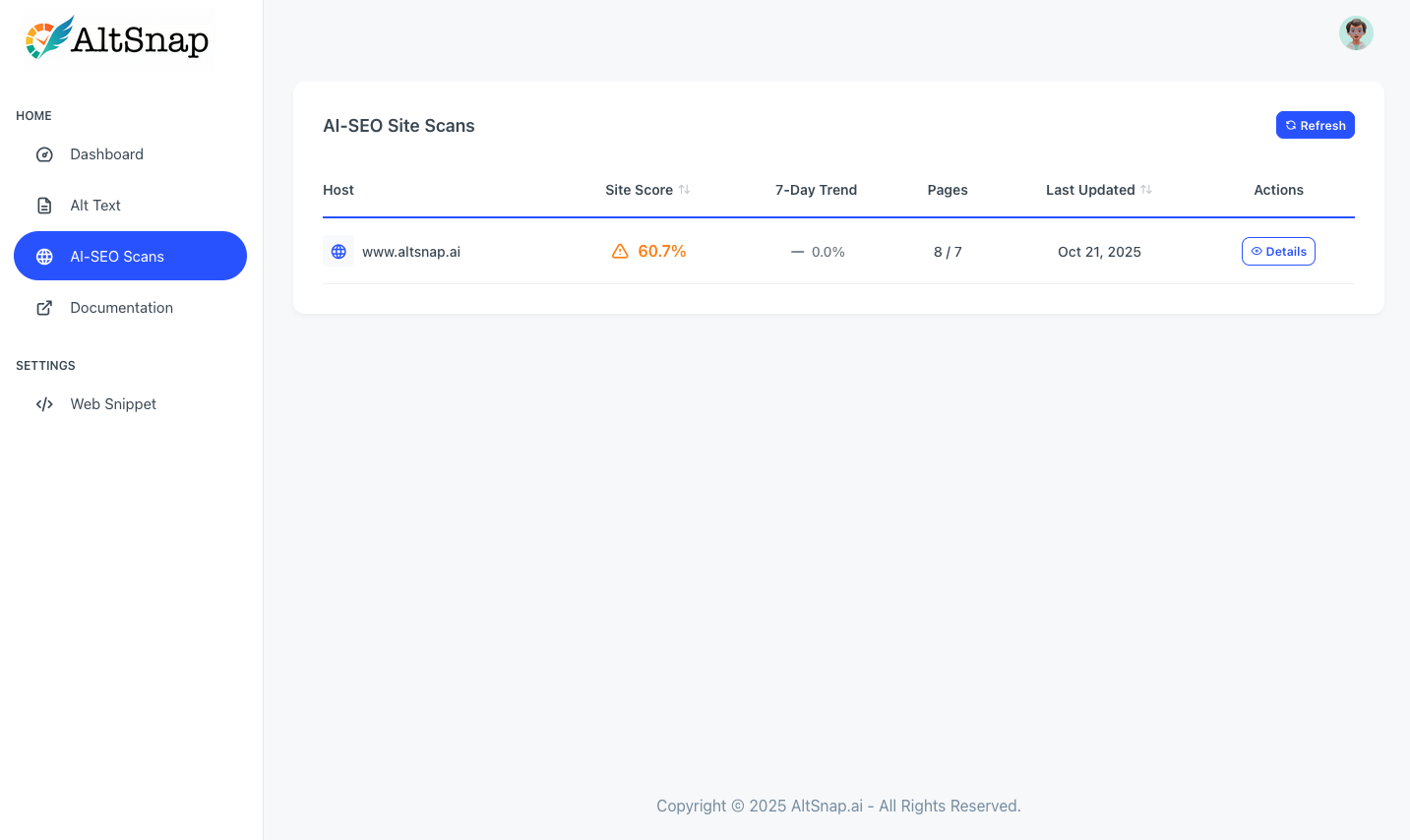
AI-SEO Sites List - Overview of all scanned websites with performance metrics and quick access to details
Table Columns
- Host: The domain name of the scanned website (e.g., www.altsnap.ai)
- Site Score: Overall SEO performance score with visual indicators:
- 60.7%: Orange warning icon - indicates fair performance, needs improvement
- 80%+: Green checkmark icon - indicates good performance
- 7-Day Trend: Performance change over the past week (e.g., 0.0% indicates no change)
- Pages: Number of pages scanned (e.g., "8 / 7" shows 8 pages scanned out of 7 expected)
- Last Updated: Date of the most recent scan
- Actions: "Details" button to drill down into specific site analysis
Key Features
- Refresh Button: Updates the list with the latest scan results
- Sortable Columns: Click column headers to sort by Host, Site Score, or Last Updated
- Quick Access: Direct navigation to detailed site analysis
Site Details
Clicking "Details" opens a comprehensive view of a specific website's SEO analysis. This screen provides site-wide metrics and a detailed breakdown of individual page performance.

Site Details - Comprehensive site analysis with overview metrics and individual page performance
Site Overview Cards
- Overall Score: Site-wide SEO performance with color-coded indicators (e.g., 60.7% - Fair)
- 7-Day Trend: Performance change over the past week
- Pages Scanned: Total number of pages analyzed
- Last Rollup: Timestamp of the most recent comprehensive analysis
Scanned Pages Table
The "Scanned Pages" section provides detailed analysis for each individual page:
- Page URL: The specific page path (e.g., "/", "/docs.html", "/blog/...")
- Overall: Individual page SEO score with color coding
- Depth: Page hierarchy level (0 = homepage, 1 = main sections, 2 = subpages)
- Scanned: When the page was last analyzed
- Actions: "Actions" button to view page-specific recommendations
Score Breakdown
Clicking on the "Overall Score" card in the Site Details view opens a comprehensive Score Breakdown modal. This detailed view explains exactly how the overall SEO score is calculated, showing the weight and contribution of each factor.

Score Breakdown Modal - Detailed breakdown of how the overall SEO score is calculated with factor weights and contributions
Scoring Factors
The overall score is a weighted composite derived from nine key factors. Each factor has a specific weight that reflects its importance to overall SEO performance:
- Content (Weight: 20%): Evaluates the strength of visible copy, intro presence, single H1 tag, and Title↔H1 alignment. This is the highest-weighted factor as quality content is fundamental to SEO.
- Structured (Weight: 18%): Assesses JSON-LD schema types, OpenGraph/Twitter meta tags, and breadcrumb implementation. Structured data helps search engines understand your content.
- Crawl (Weight: 18%): Checks for proper canonical tags, meta descriptions, HTML lang attributes, robots.txt, and sitemap presence. Essential for search engine accessibility.
- Links (Weight: 14%): Analyzes descriptive anchor text ratio, internal linking structure, and applies penalties for PDF-as-primary pages.
- Media (Weight: 10%): Measures alt text coverage percentage, color contrast ratios, video captions/transcripts, and image size/dimensions optimization.
- Snippability (Weight: 8%): Evaluates "liftable" content including Q&A blocks, short lists, tables, and self-contained sentences that search engines can extract for featured snippets.
- Clarity (Weight: 6%): Analyzes the balance of measurable facts versus vague terms to ensure content specificity and usefulness.
- Entity (Weight: 4%): Measures entity grounding (scaled from 0-1 to 0-100), indicating how well your content relates to recognized entities.
- Freshness (Weight: 2%): Based on days since last update with bucketed scoring: ≤30 days = 85, ≤90 days = 70, ≤180 days = 55, else 35 (default 50 when no update date available).
Performance Bonus
In addition to the weighted factors, pages can earn a performance bonus based on Time to Interactive (TTI) metrics:
- <1000ms: +5 points bonus
- <2000ms: +3 points bonus
- <3000ms: +2 points bonus
- <4000ms: +1 point bonus
- ≥4000ms: +0 points (no bonus)
The performance bonus is capped at +5 points maximum and rewards fast-loading pages, as page speed is a known ranking factor.
Understanding Your Score
The Score Breakdown modal shows:
- Overall Score: The final composite score as a percentage (e.g., 88.0%)
- Scan Timestamp: When the page was last analyzed
- Factor Scores: Individual score (0-100) for each factor
- Weight: Percentage weight of each factor in the overall calculation
- Contribution: The actual points contributed to the overall score (Factor Score × Weight)
Prioritizing Improvements
Use the Score Breakdown to identify your biggest opportunities for improvement. Focus on factors with: (1) Low scores that have high weights (e.g., Content, Structured, Crawl), and (2) Low scores that are easiest to fix (e.g., missing meta descriptions, alt text coverage). The contribution column shows exactly how many points each factor adds to your overall score.
Note on Score Evolution
Weights and scoring buckets may evolve as search engine algorithms and best practices change. Always use the breakdown to identify specific improvement opportunities rather than focusing solely on the overall number. The detailed factor analysis provides actionable insights regardless of minor weight adjustments.
Page Recommendations
Clicking "Actions" on any page opens a detailed list of SEO recommendations specific to that page. This view helps you prioritize and work through issues systematically.
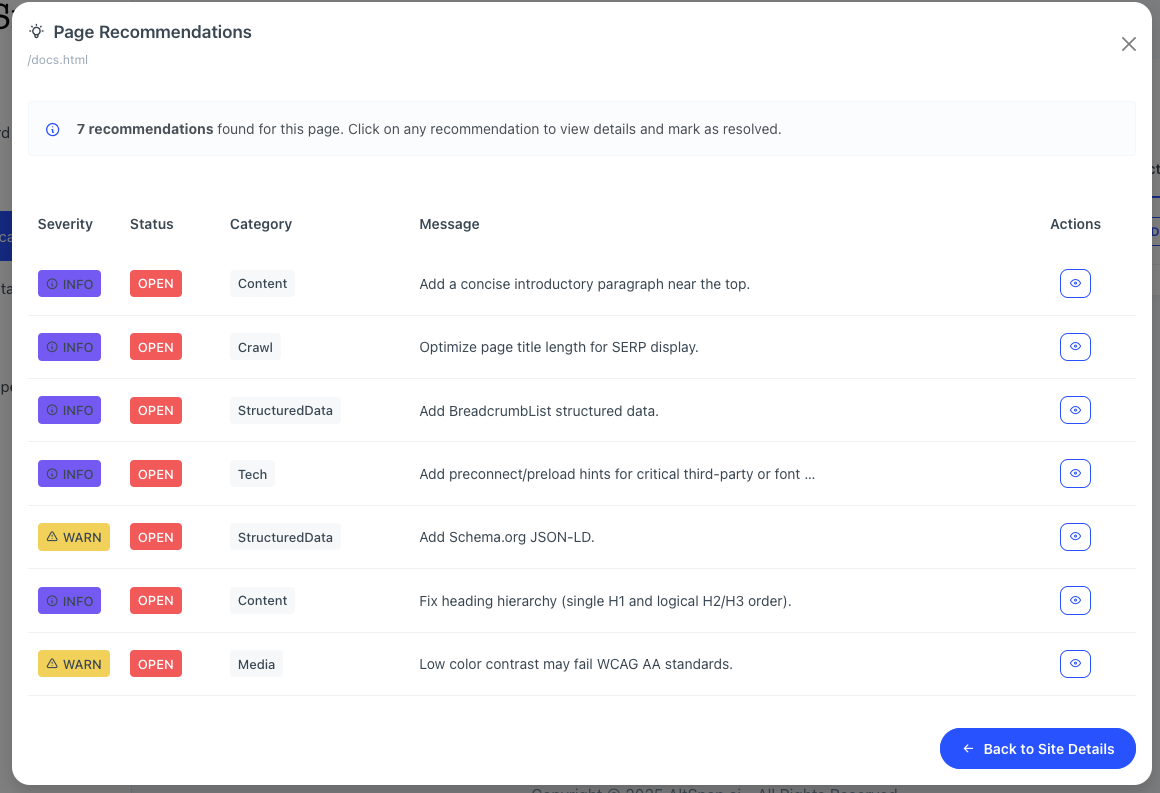
Page Recommendations - Detailed list of SEO issues with severity levels and resolution status
Recommendation Table Columns
- Severity: Issue priority level:
- INFO: Informational recommendations for optimization
- WARN: Yellow warning icon - important issues that should be addressed
- ERROR: Red error icon - critical issues requiring immediate attention
- Status: Current resolution state (OPEN = needs attention, RESOLVED = fixed)
- Category: Type of SEO issue (Content, Crawl, StructuredData, Tech, Media)
- Message: Brief description of the recommendation
- Actions: Eye icon to view detailed recommendations and fix instructions
Recommendation Categories
- Content: Text optimization, heading structure, introductory paragraphs
- Crawl: Page title optimization, meta descriptions, URL structure
- StructuredData: Schema.org JSON-LD, breadcrumb markup, rich snippets
- Tech: Performance optimization, preconnect hints, loading improvements
- Media: Image optimization, color contrast, accessibility compliance
Recommendation Details
Clicking the "View" action opens a detailed modal with comprehensive information about the specific recommendation, including step-by-step fix instructions and implementation examples.
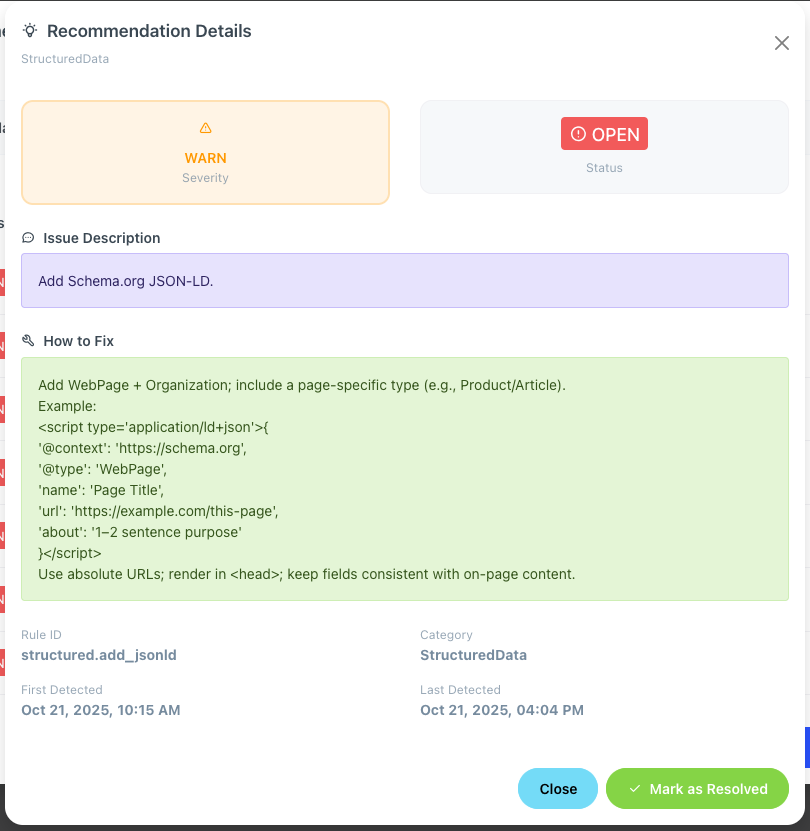
Recommendation Details - Comprehensive fix instructions with code examples and resolution tracking
Detailed Information
- Severity & Status: Visual indicators showing issue priority and current state
- Issue Description: Clear explanation of what needs to be addressed
- How to Fix: Step-by-step instructions with specific implementation guidance
- Code Examples: Ready-to-use code snippets for common fixes (e.g., JSON-LD structured data)
- Best Practices: Additional tips for optimal implementation
Recommendation Metadata
- Rule ID: Unique identifier for the recommendation (e.g., structured.add_jsonld)
- Category: SEO category classification
- First Detected: When the issue was initially identified
- Last Detected: Most recent occurrence of the issue
Resolution Workflow
The recommendation details modal includes a powerful resolution workflow:
- Mark as Resolved: Green button to mark the issue as fixed after implementation
- Queue Management: Track your progress by resolving issues one by one
- Status Tracking: Monitor which issues are open vs. resolved
- Progress Visibility: See your SEO improvement progress over time
Workflow Best Practices
To effectively use the AI-SEO Scans feature:
- Start with High-Impact Issues: Focus on WARN and ERROR severity items first
- Work by Category: Address all StructuredData issues, then Content, then Tech
- Use the Queue System: Mark items as resolved to track your progress
- Implement Code Examples: Use the provided code snippets for quick fixes
- Monitor Trends: Check 7-day trends to see improvement over time
- Regular Reviews: Periodically review recommendations to catch new issues
SEO Improvement Tracking
The AI-SEO Scans feature provides comprehensive tracking of your SEO improvement journey. By systematically working through recommendations and marking them as resolved, you can monitor your site's SEO health and see measurable improvements in your search rankings.
Important Note
SEO improvements typically take time to reflect in search rankings. While implementing recommendations will improve your site's technical SEO, expect 2-4 weeks to see measurable changes in search engine results.
Web Snippet
The AltSnap Web Snippet allows you to automatically generate and evaluate alt text for all images on your website by adding a small JavaScript embed code. This is the easiest way to implement AI-powered accessibility and alt text optimization.
How it works
Once installed, the embedded script automatically scans every image on your page. For images missing alt text, it generates new, WCAG-informed descriptions using AI. For images that already have alt text, AltSnap evaluates those entries and assigns a confidence score—indicating how well the existing text fits the image and surrounding page context.
- New alt text is generated once per image. After generation, it’s cached and reused for better performance.
- Existing alt text is reviewed and scored. Low-confidence results are flagged for review in your dashboard.
- First-time page views trigger background scans and AI evaluations.
- Subsequent visits use cached results for instant alt text rendering.
This approach ensures every image—whether previously labeled or not—gets the attention it deserves. AltSnap helps surface low-quality or outdated alt text so you can make quick improvements without manual audits.
Important
The Web Snippet requires an active AltSnap subscription. Without an active subscription, new alt text will not be generated or evaluated for new images across your site.
Reliability
Generated and evaluated alt texts are cached in a global CDN for high availability and fault tolerance. This ensures your visitors receive consistent accessibility data even during traffic spikes or temporary service disruptions.
Performance Impact
The AltSnap web snippet is designed to have minimal impact on your website's performance:
- Lightweight JavaScript library (~15KB gzipped)
- Asynchronous loading that never blocks rendering
- Intelligent caching to minimize API calls
- CDN delivery for fast global access
Privacy & Security
We take privacy and security seriously:
- Images are processed securely on our servers
- No personal data is collected or stored
- HTTPS-only communication
- GDPR-compliant data handling
Ready to get started?
Check out our Get Started guide to implement the web snippet on your website in just a few minutes.
Get Started with Web Snippet
Get AltSnap's AI-powered alt text generation working on your website in under 5 minutes. Follow these simple steps to implement the web snippet.
Step 1: Get Your API Key
First, you'll need to create an AltSnap account and generate an API key:
- Sign up for an account at app.altsnap.ai
- Log in to your dashboard
- Navigate to the "Web Snippet" section
- Generate a new API key for your website
- Copy the Web Snippet to add to your webiste
Step 2: Add the Snippet to Your Website
Add the following code to the <head> section of your website, replacing YOUR_API_KEY_AND_SECRET with your actual API key:
<script>
window.AltSnapConfig = {
apiKey:"YOUR_API_KEY_AND_SECRET"
};
</script>
<script src="https://cdn.altsnap.ai/sdk/v1/altsnap.min.js" async defer></script>
Step 3: Test Your Implementation
After adding the snippet to your website:
- Visit a page on your website with images that don't have alt text
- Open your browser's developer tools (F12)
- Check the Network tab for requests to api.altsnap.ai
- Inspect the images on the page - they should now have alt text attributes
Basic Configuration
You can customize the behavior of the web snippet by adding additional configuration options:
<script>
window.AltSnapConfig = {
apiKey:"YOUR_API_KEY_AND_SECRET",
overwrite: false,
evaluateExisting: true
};
</script>
<script src= "https://cdn.altsnap.ai/sdk/v1/altsnap.min.js" async defer></script>
That's it!
Your website will now automatically generate alt text for all images. The process happens in the background and doesn't affect your site's performance. Check out the Advanced Features section for more customization options.
Installation Guide
Detailed installation instructions for different platforms and content management systems. Choose the method that works best for your setup.
HTML/Static Websites
For static HTML websites, simply add the AltSnap snippet to the <head> section of your HTML files:
<html lang="en">
<head>
<meta charset="utf-8">
<title>My Website</title>
<!-- AltSnap Web Snippet -->
<script>
window.AltSnapConfig = {
apiKey:"YOUR_API_KEY_AND_SECRET"
};
</script>
<script src="https://cdn.altsnap.ai/sdk/v1/altsnap.min.js" async defer></script>
</head>
WordPress
For WordPress sites, you can add the snippet through your theme's functions.php file or using a plugin:
Method 1: functions.php
function add_altsnap_script() {
?>
<script>
window.AltSnapConfig = {
apiKey:"YOUR_API_KEY_AND_SECRET"
};
</script>
<script src="https://cdn.altsnap.ai/sdk/v1/altsnap.min.js" async defer></script>
<?php
}
add_action('wp_head', 'add_altsnap_script');
Shopify
For Shopify stores, add the snippet through your theme's liquid template:
<script>
window.AltSnapConfig = {
apiKey:"YOUR_API_KEY_AND_SECRET",
mode:"ecommerce" // Optimized for product images
};
</script>
<script src="https://cdn.altsnap.ai/sdk/v1/altsnap.min.js" async defer></script>
React/Next.js
For React applications, you can add the script to your HTML head or use a component:
<script dangerouslySetInnerHTML={{
__html: `
window.AltSnapConfig = {
apiKey: "YOUR_API_KEY_AND_SECRET"
};
`
}}
/>
<script src="https://cdn.altsnap.ai/sdk/v1/altsnap.min.js" async defer></script>
Wix
Add AltSnap to your Wix site by pasting the snippet into your site's custom code settings so it loads across every page.
Step 2: Go to Your Wix Site Dashboard
- Log in to your Wix account at wix.com.
- From the Wix dashboard, choose the site where you want to install AltSnap.
Step 3: Open the Custom Code Settings
- In the left sidebar, click Settings ⚙️.
- Scroll down to the Advanced section and select Custom Code.
- Click the + Add Custom Code button.
Step 4: Paste the AltSnap Script
- Paste your altsnap.js snippet into the code box.
- Set Place Code In to Head.
- Choose All Pages so the script runs across the entire site.
- Turn Load code once the page has loaded to Off so AltSnap runs immediately.
- Click Apply.
-
<!-- AltSnap Web Snippet -->
<script>
window.AltSnapConfig = {
apiKey:"YOUR_API_KEY_AND_SECRET"
};
</script>
<script src="https://cdn.altsnap.ai/sdk/v1/altsnap.min.js" async defer></script>
Step 5: Publish and Verify
- Click Publish in Wix to push your changes live.
- Return to your AltSnap dashboard to confirm the site shows a “Verified” status once the script runs.
Squarespace
Use Squarespace's Code Injection feature to add the AltSnap snippet so it loads on every page.
Step 2: Open Your Squarespace Settings
- Log in at squarespace.com.
- From the Home Menu, click Settings → Advanced → Code Injection.
Note: Code Injection is only available on Business and Commerce plans.
Step 3: Paste the Script in the Header
- In the Header box under Code Injection, paste your altsnap.js snippet.
- Click Save in the top-left corner.
-
<!-- AltSnap Web Snippet -->
<script>
window.AltSnapConfig = {
apiKey:"YOUR_API_KEY_AND_SECRET"
};
</script>
<script src="https://cdn.altsnap.ai/sdk/v1/altsnap.min.js" async defer></script>
This ensures the script loads globally on every page of your Squarespace site.
Step 4: Publish and Verify
- Visit your live site (for example, yourdomain.com) to allow the AltSnap script to run.
- Return to your AltSnap dashboard—your site should update to a “Verified” status once the script is detected.
Verification may take up to a minute. If it does not appear right away, refresh your dashboard or open your site in a new browser tab to trigger the snippet.
Testing Your Installation
After installing the snippet on your website, follow these steps to verify it's working correctly:
- Check the browser console for any AltSnap-related messages or errors
- Inspect network requests to see if API calls are being made to altsnap.ai
- Examine image elements to verify alt text attributes are being added
- Test with new images to ensure the generation process works for fresh content
Troubleshooting
If you're having issues with the installation:
- Verify your API key is correct and active
- Check that your website has an active AltSnap subscription
- Ensure the script is loading before any images are rendered
Advanced Features
Fine-tune how AltSnap scans, generates, and evaluates alt text. These options let you control selection, scoring, retries, and more—so the snippet fits your site and workflow.
Configuration Options
Add options to window.AltSnapConfig before loading the SDK:
<script>
            window.AltSnapConfig = {
              apiKey: "YOUR_API_KEY_AND_SECRET",

              // Optional overrides
              // endpoint: "https://api.altsnap.ai",
              // selector: "img",             // CSS selector for images to process
              // overwrite: false,            // If true, can replace existing alt attributes
              // evaluateExisting: true,      // Evaluate existing alt text as well (default: true)
              // tagExistingScores: true,     // Write data-* attributes with scores/flags
              // observe: true,               // Use IntersectionObserver for lazy/later images
              // enableOCR: false,            // Extract on-image text (requires Tesseract)
              // ocrLang: "eng",              // OCR language
              // ocrScriptUrl: "https://unpkg.com/tesseract.js@4.0.2/dist/tesseract.min.js",
              // domainHint: "ecommerce",     // Optional domain hint to guide generation
              // log: false,                  // Console logging
              // autorun: true,               // Auto-run on DOM ready

              // Hooks
              // beforeSend: (payload, img) => payload, // mutate payload before POST
              // onResult:  (result,  img) => {},       // per-image result callback

              // Retry policy (long-running jobs / transient failures)
              // requestTimeoutMs: 30000,
              // maxRetries: 2,
              // backoffBaseMs: 4000,
              // backoffCapMs: 20000,
              // queueMax: 200,
              // retryConcurrency: 3,

              // evaluateExisting: true, // Evaluate existing alt text for scoring/quality (doesn't overwrite unless overwrite:true)
              // tagExistingScores: true, // Write returned scoring/flags to data-* attributes

              // ---- AI SEO scan ----
              // aiSeoScanEnabled: true,
              // aiSeoScanDebounceMs: 1500, // wait for SPA bursts to settle
              // scanVersion: "v1",

              // Ignore policy (merge with defaults)
              // ignore: {
              //   emptyAltPolicy: "evaluate", // "skip" | "evaluate" | "generate"
              //   ariaHidden: true,
              //   rolePresentation: true,
              //   minPixels: 3,               // skip 1–2px trackers
              //   skipCssHidden: true,
              //   // Advanced:
              //   // skipDataUris: ["data:image/gif;base64,R0lGODlhAQAB"],
              //   // skipSrcPatterns: [/pixel/i, /tracker/i, /spacer/i, /beacon/i, /clear\.gif$/i, /blank/i, /placeholder/i],
              //   // skipClassPatterns: [/icon/i, /sprite/i, /emoji/i, /caret/i, /chevron/i, /arrow/i, /hamburger/i, /close\b/i],
              //   // skipSelectors: ["template img", "noscript img"],
              //   // skipIf: (img) => false
              // }
            };
          </script>
          <script src="https://cdn.altsnap.ai/sdk/v1/altsnap.min.js" defer></script>
Evaluate Existing Alt Text
Even if you’ve already written alt text, AltSnap can evaluate it for contextual fit and assign a confidence score.
Use evaluateExisting (on by default) to enable scoring, and tagExistingScores to annotate images with data attributes you can read in your UI/tests.
window.AltSnapConfig = {
            apiKey: "YOUR_API_KEY_AND_SECRET",
            evaluateExisting: true,
            tagExistingScores: true
            // … other options
          };
When tagExistingScores is enabled, the snippet applies data-* attributes to the image element (example keys shown below; exact keys may evolve):
data-altsnap-source="existing|generated"data-altsnap-confidence="0.0–1.0"data-altsnap-flag="lowConfidence|ok|reviewed"
OCR (On-Image Text)
Enable OCR to capture visible text (e.g., charts, screenshots, UI labels) and feed it into context. This uses Tesseract in the browser; include the script and set language as needed.
window.AltSnapConfig = {
            apiKey: "YOUR_API_KEY_AND_SECRET",
            enableOCR: true,
            ocrLang: "eng",
            ocrScriptUrl: "https://unpkg.com/tesseract.js@4.0.2/dist/tesseract.min.js"
          };
Selective Processing & Ignore Policy
Control what gets scanned via selector, include/exclude patterns, and the ignore policy. This reduces noise and saves API calls.
Skip Trackers & Decorative
window.AltSnapConfig = {
            // ...
            ignore: {
              emptyAltPolicy: "evaluate",
              ariaHidden: true,
              rolePresentation: true,
              minPixels: 3,
              skipCssHidden: true
            }
          };
Advanced Skips
window.AltSnapConfig = {
            // ...
            ignore: {
              // skipDataUris: [...],
              // skipSrcPatterns: [/pixel/i, /spacer/i, /placeholder/i],
              // skipClassPatterns: [/icon/i, /emoji/i, /chevron/i],
              // skipSelectors: ["template img", "noscript img"],
              // skipIf: (img) => img.width < 8
            }
          };
Reliability: Retries & Queueing
Tune retry/backoff for long-running generations or transient network issues. A bounded queue prevents runaway work in heavy pages.
window.AltSnapConfig = {
            apiKey: "YOUR_API_KEY_AND_SECRET",
            requestTimeoutMs: 30000,
            maxRetries: 2,
            backoffBaseMs: 4000,
            backoffCapMs: 20000,
            queueMax: 200,
            retryConcurrency: 3
          };
Hooks
Use hooks to enrich payloads, route by tenant/site, and respond to results (e.g., telemetry, custom UI).
window.AltSnapConfig = {
            apiKey: "YOUR_API_KEY_AND_SECRET",

            beforeSend: (payload, img) => {
              // Attach page context or tenant info
              return { ...payload, meta: { ...payload.meta, tenantId: "acme-co" } };
            },

            onResult: (result, img) => {
              // result: { source, confidence, alt, flags, id, ... }
              if (result.confidence < 0.7) {
                console.warn("AltSnap: low confidence", { src: img.src, result });
                // e.g., highlight image or enqueue for human review
              }
            }
          };
Logging
Turn on log during development for visibility into selection, requests, and caching.
window.AltSnapConfig = { apiKey: "YOUR_API_KEY_AND_SECRET", log: true };Lazy & Late-Loading Images
Enable observe so images added later (infinite scroll, sliders, SPA routes) are discovered automatically via IntersectionObserver.
window.AltSnapConfig = { apiKey: "YOUR_API_KEY_AND_SECRET", observe: true };Domain Hints & Writing Style
Guide generation with domainHint and choose concise vs. descriptive vs. detailed in your dashboard (or prompt templates). For product catalogs, set a hint like "ecommerce".
window.AltSnapConfig = { apiKey: "YOUR_API_KEY_AND_SECRET", domainHint: "ecommerce" };Notes
- AltSnap evaluates as well as generates. Existing alt is scored; low-confidence items are easy to spot and fix.
- Performance: The SDK loads async, uses CDN caching, and minimizes API calls with smart reuse.
- Privacy: Images are processed securely; HTTPS-only. See our Privacy section for details.